Entity Verification
Last Updated: 2026-05-03 22:08:48
Entity Verification Prerequisites and Entry
- Sign up for a Bitdeer AI account first.
- If you do not have an account, visit Sign-up.
- After signing in, open the User Center and click Identity Verification.
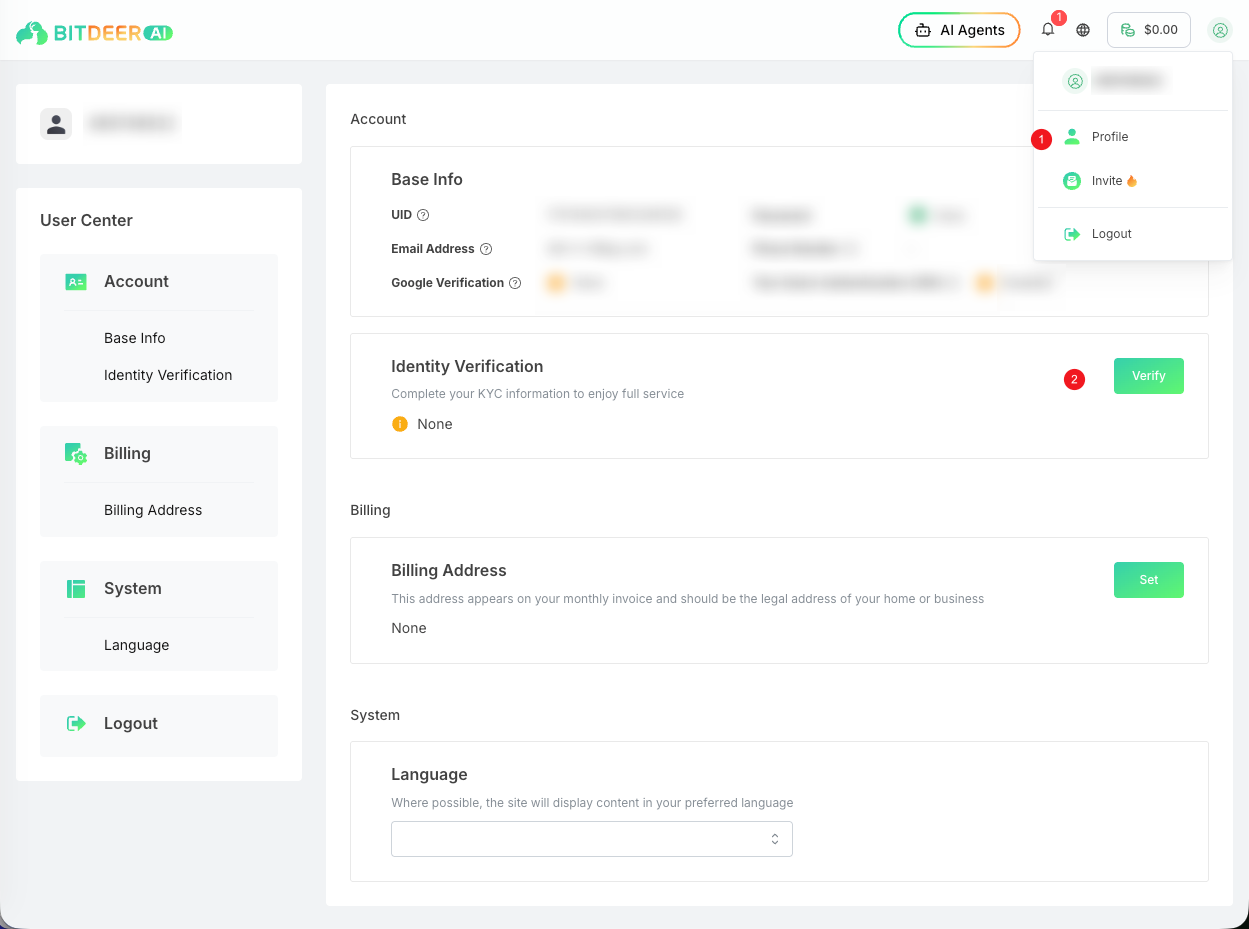
Select Entity Verification
- Select Entity Verification on the verification page.
- Click Start verification to open the business details form.
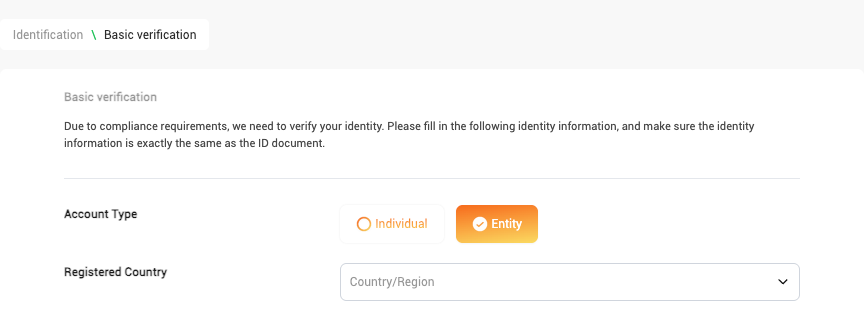
Steps
- Choose the registered country or region.
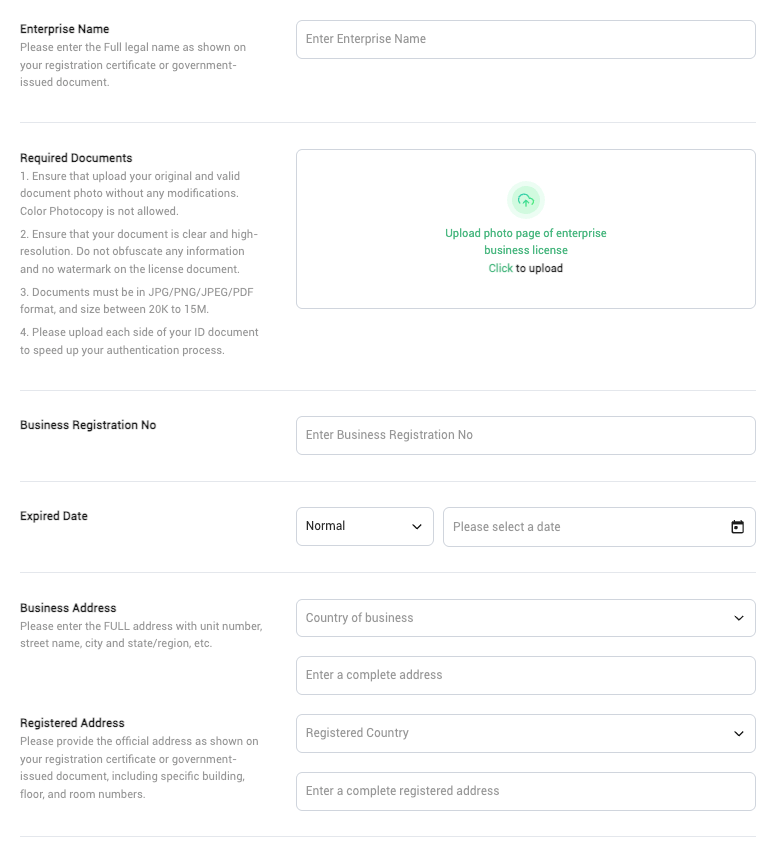
- Enter the company name.
- Upload the business document.
- Enter the business registration number.
- Select the expiration date.
- Fill in the business address.
- Fill in the registered address.
- Tick the confirmation checkbox and submit the verification details.
Requirements
- The business document must be an original or valid document, not a photocopy.
- The image must be clear, unobstructed, and without watermarks.
- Supported formats:
JPG,PNG,JPEG, andPDF. - File size must be between
20Kand15M. - The company name, registration number, and registered address must match the document exactly.
After Submission
- Return to the verification page to check the result.
- If the page asks for additional information, complete the missing fields as prompted.
- Submit again after the supplement is finished.
Notes
- The page reminds users that the business details must match the document exactly.
- Always confirm that all information is correct and valid before submitting.
- The verification entry and information supplement are both on the Identity Verification page.